Chroma 2: every server, every screen
Back in March 2024 I shipped the first version of Chroma, a Plex client for the Apple Vision Pro that put your library on a giant screen in a cinema. A lot has happened since then. Chroma 2 is a different app: it plays from Plex, Jellyfin and Emby, it runs on iPhone and iPad as well as Vision Pro, and it has picked up a long list of things I always wanted in a media player. Here’s everything that’s new across the 2.x releases so far.
Get Chroma on the App Store for Apple Vision Pro, iPhone and iPad.
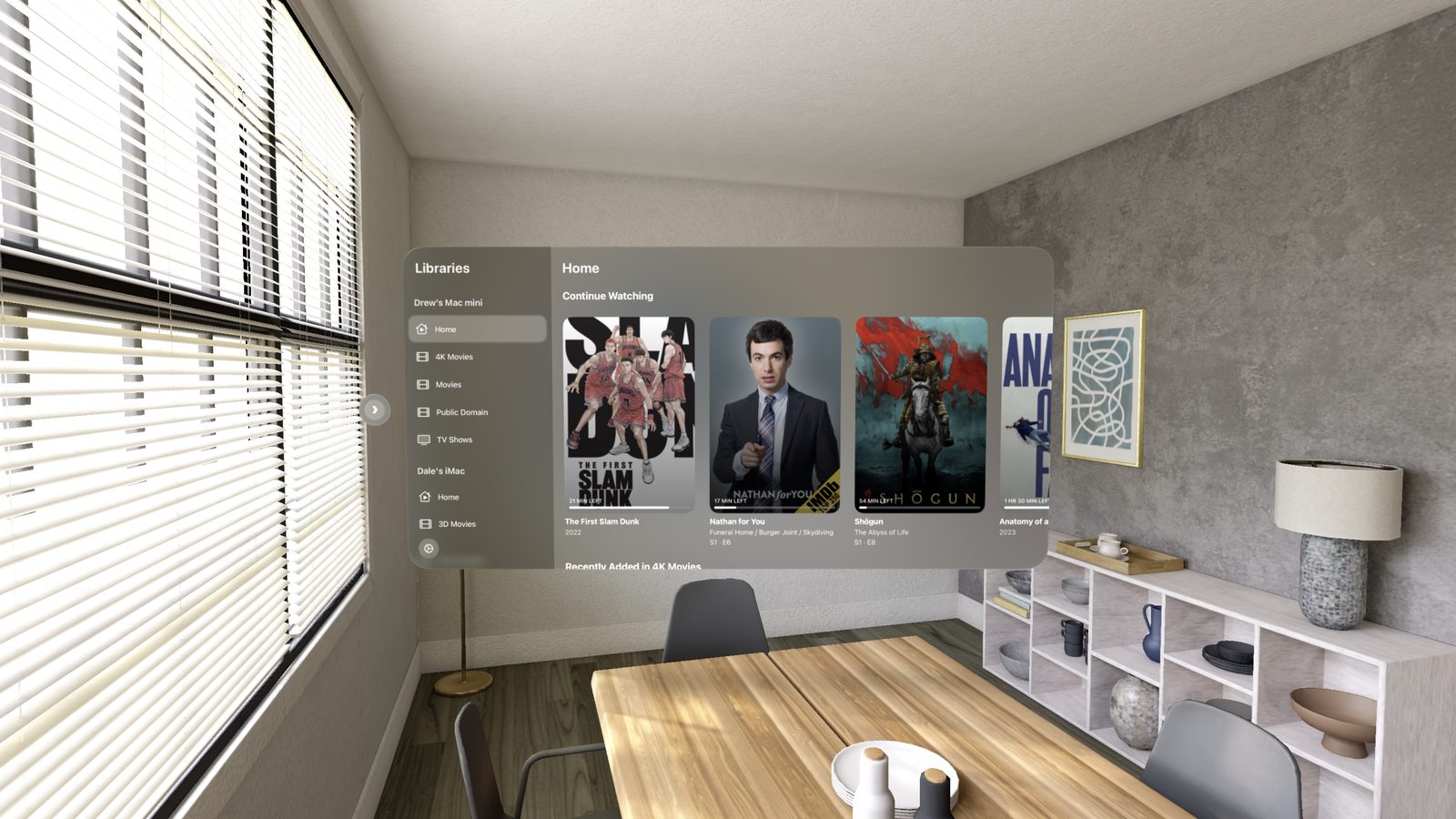
Every server, one app
Chroma started out as Plex-only. Now Jellyfin and Emby sit alongside Plex, and you can connect as many servers as you like. They share one toolbar, so switching between them is a tap, and search covers every server at once. You can also search inside a single library, from the top of its grid, and the results come from the server so they cover the whole collection.
A few things that make multiple servers pleasant to live with:
- Custom Plex server addresses. Point Chroma at an address your Plex server doesn’t advertise, like a Tailscale or VPN hostname, a reverse proxy, or a LAN IP. Chroma checks that it really is your server before it saves it.
- Plex Home. Switch between the people sharing one Plex account, each with their own libraries and watch progress.
- A film in two libraries shows up once. If you have the HD and 4K versions in separate libraries, you get one card with the versions in its menu.
- Steadier connections. A server that’s asleep doesn’t slow down the others, and when one can’t be reached Chroma says so straight away and reconnects on its own when it comes back.
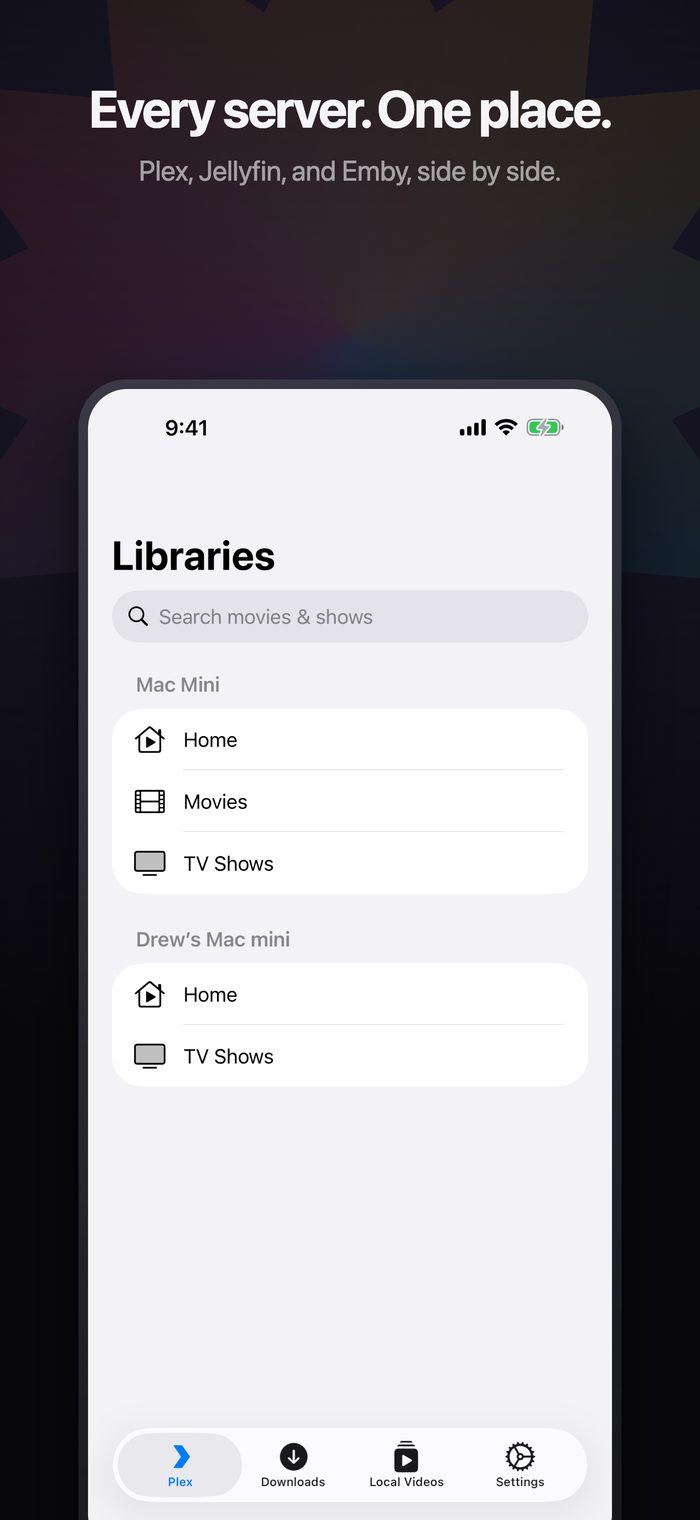
iPhone and iPad
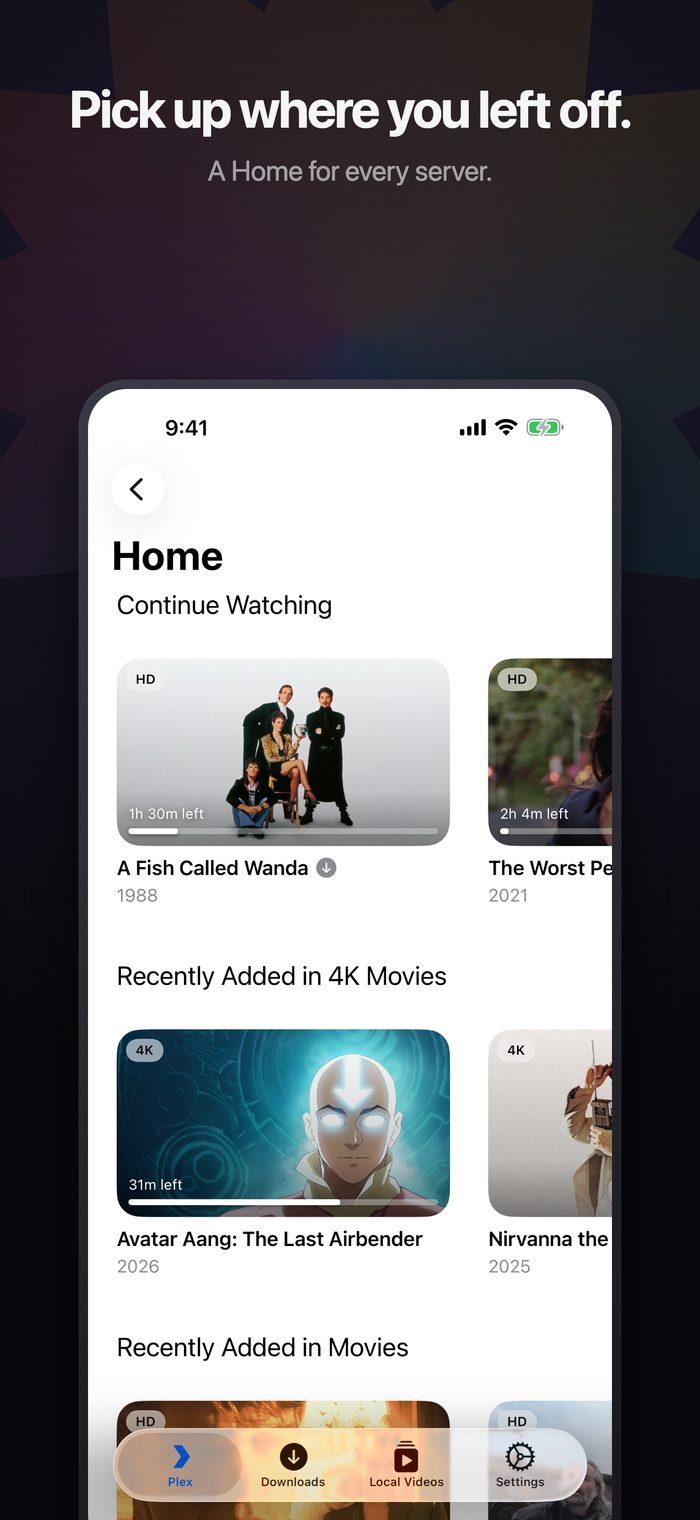
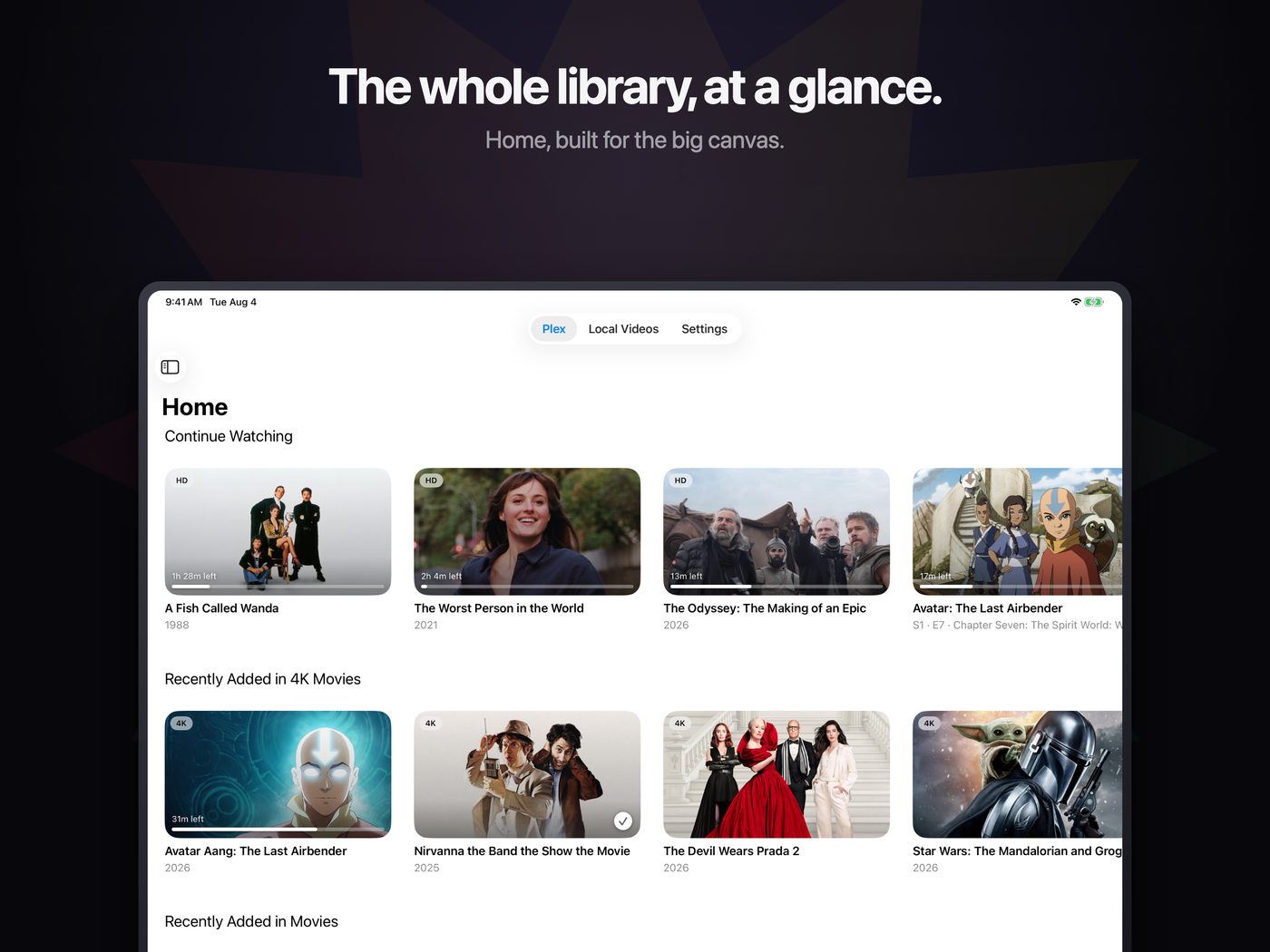
Chroma is on iPhone and iPad now. It’s the same app, built for the smaller screen: the same Home, the same detail pages, the same downloads, and a native player with your subtitle styles.
Browsing that feels instant
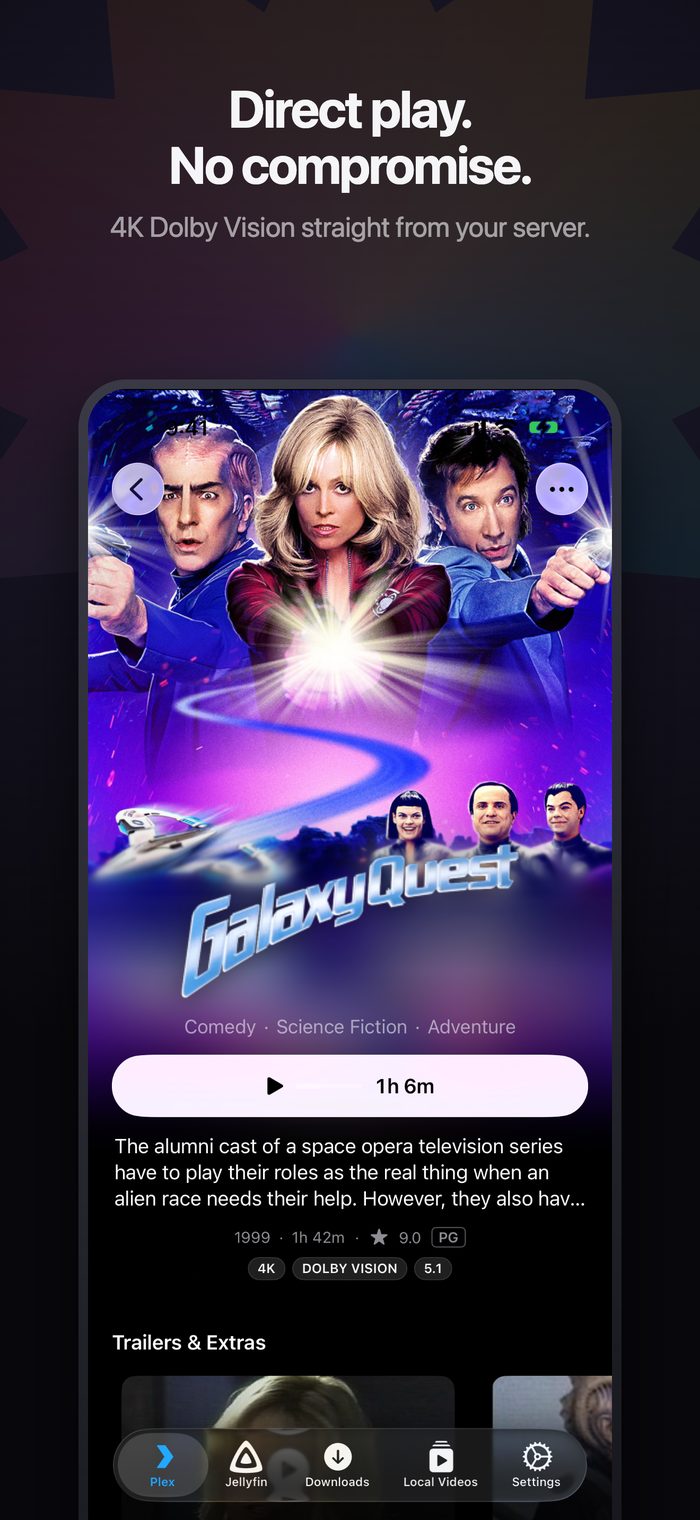
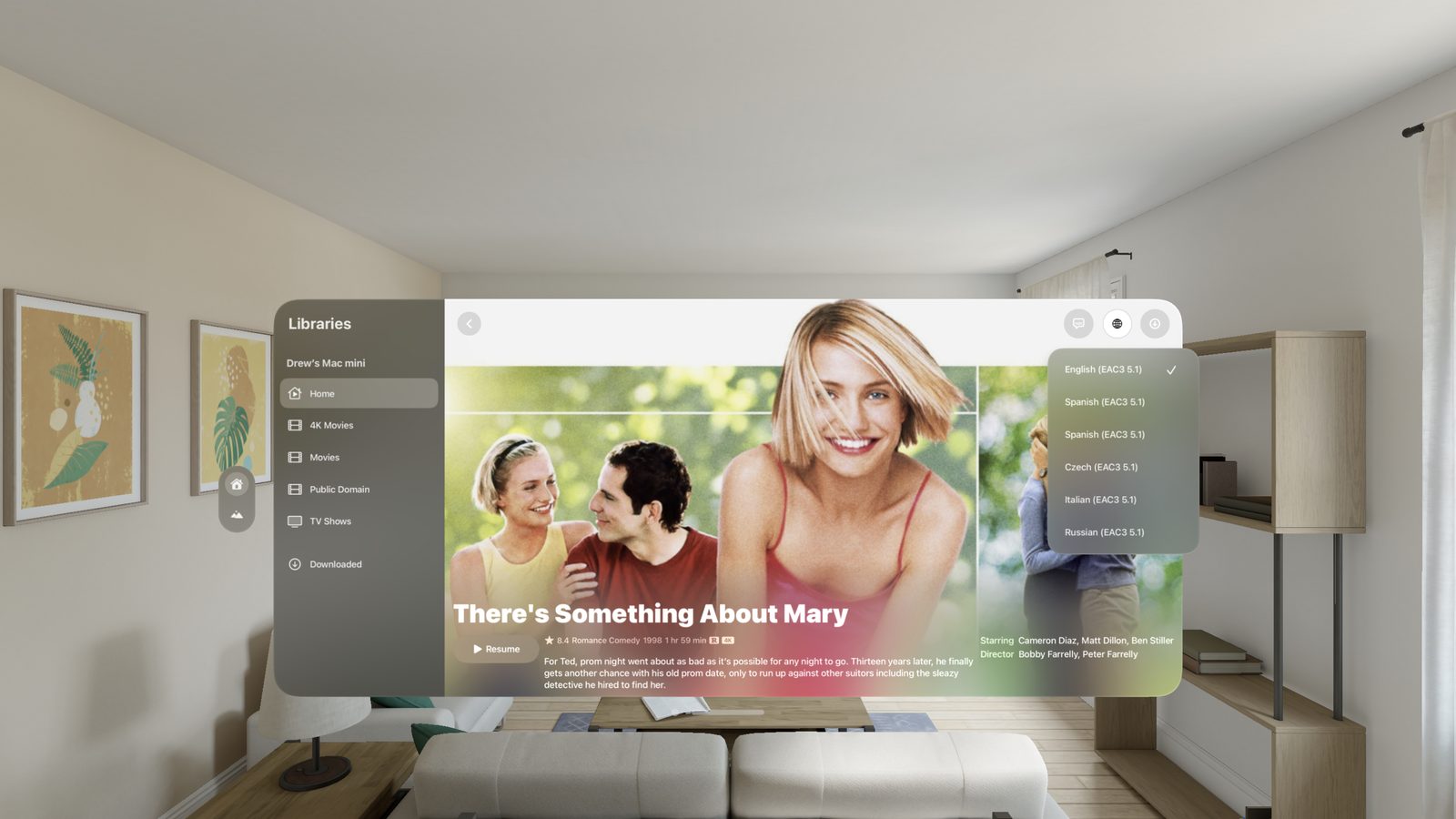
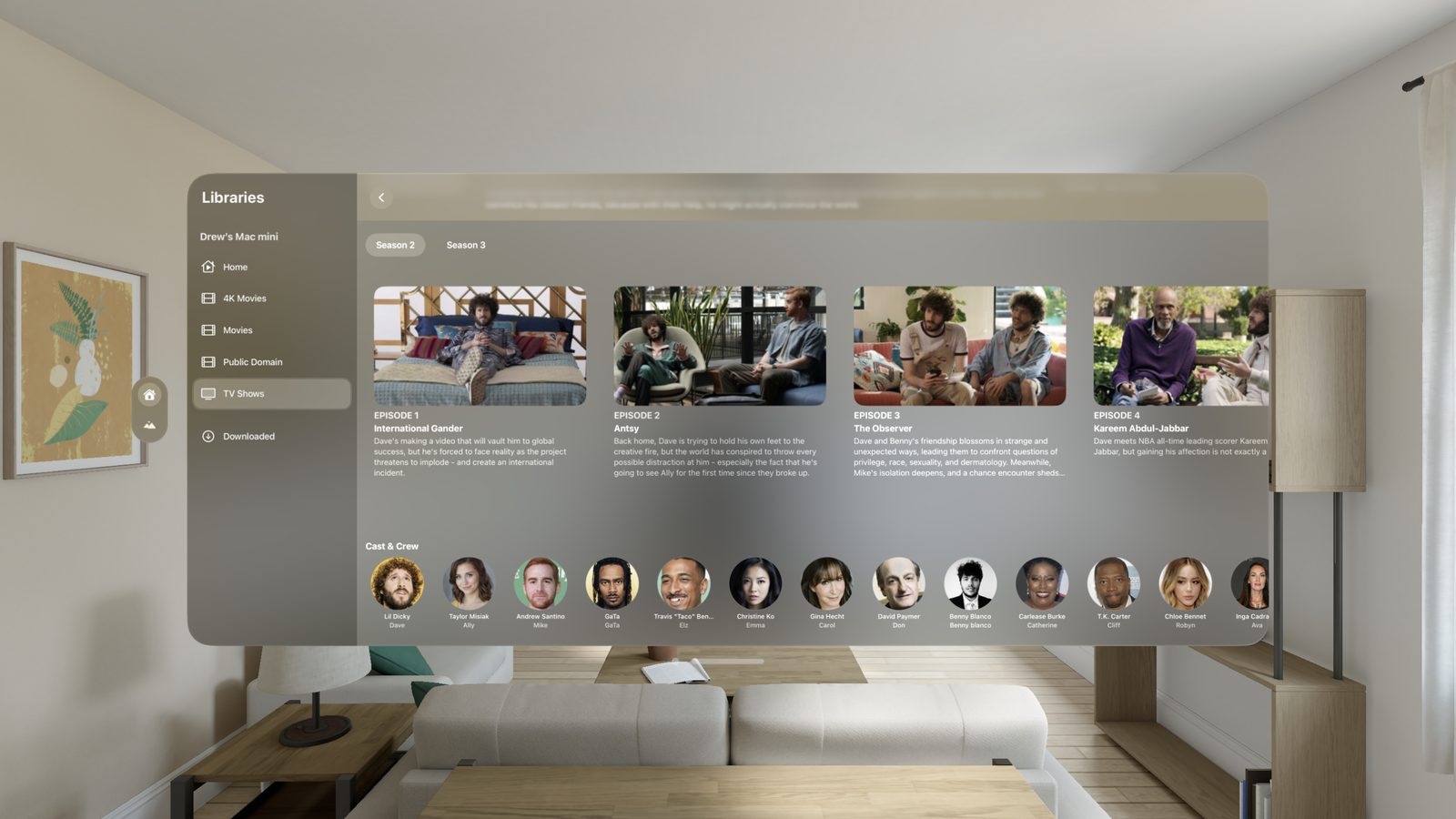
Browsing got rebuilt from the ground up. Detail pages have trailers, extras and cast (with the episodes of a show laid out below), and you can browse by genre. A show opens on the season you’re actually watching. Pages open instantly, even right after launching the app: Chroma shows what it last saw, then quietly catches up in the background.
Watching, in the cinema
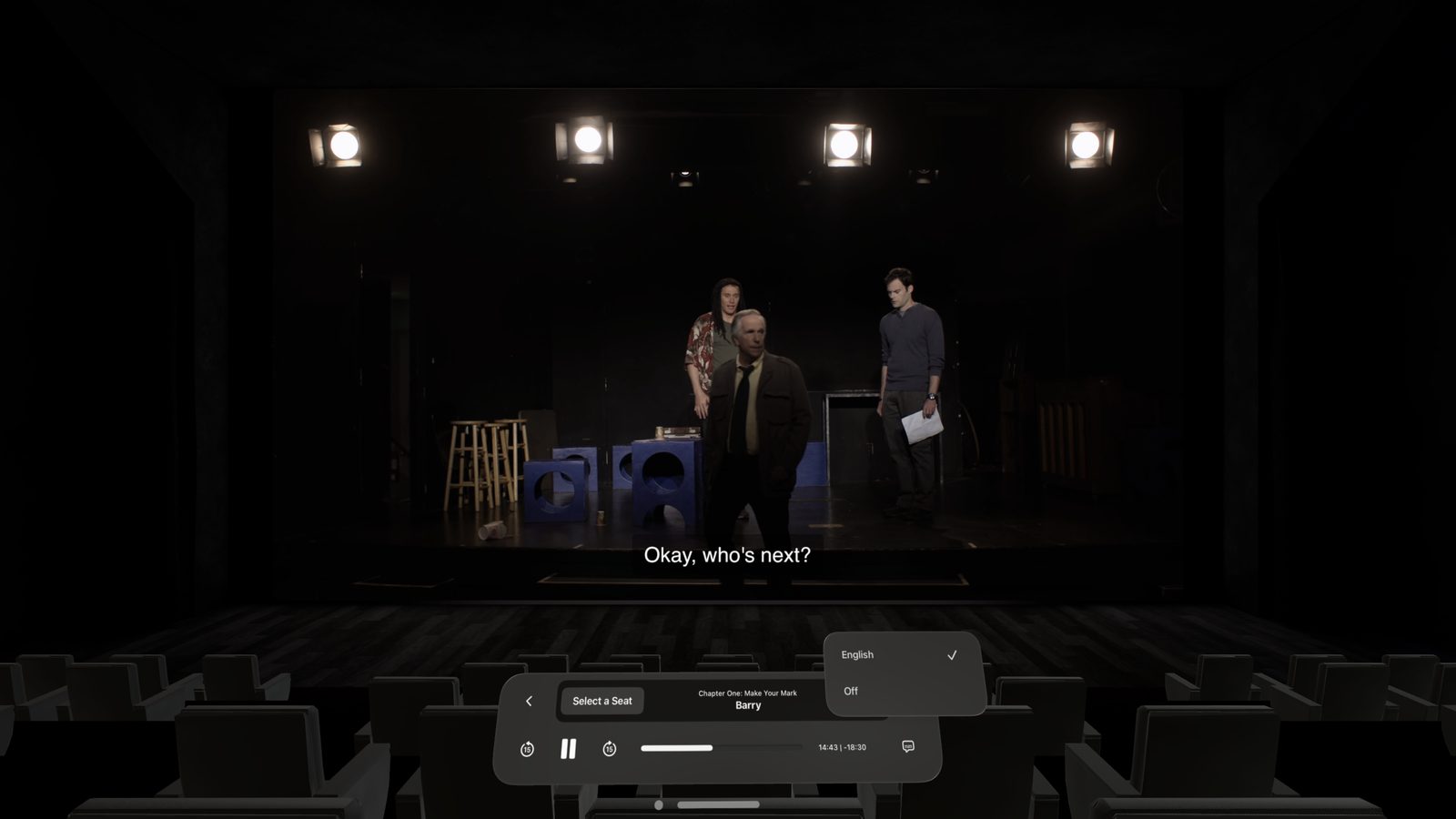
The cinema is still the heart of the Vision Pro app, and it keeps getting better:
- The sound is laid out around you and anchored to the screen, so dialogue stays where the picture is when you turn your head.
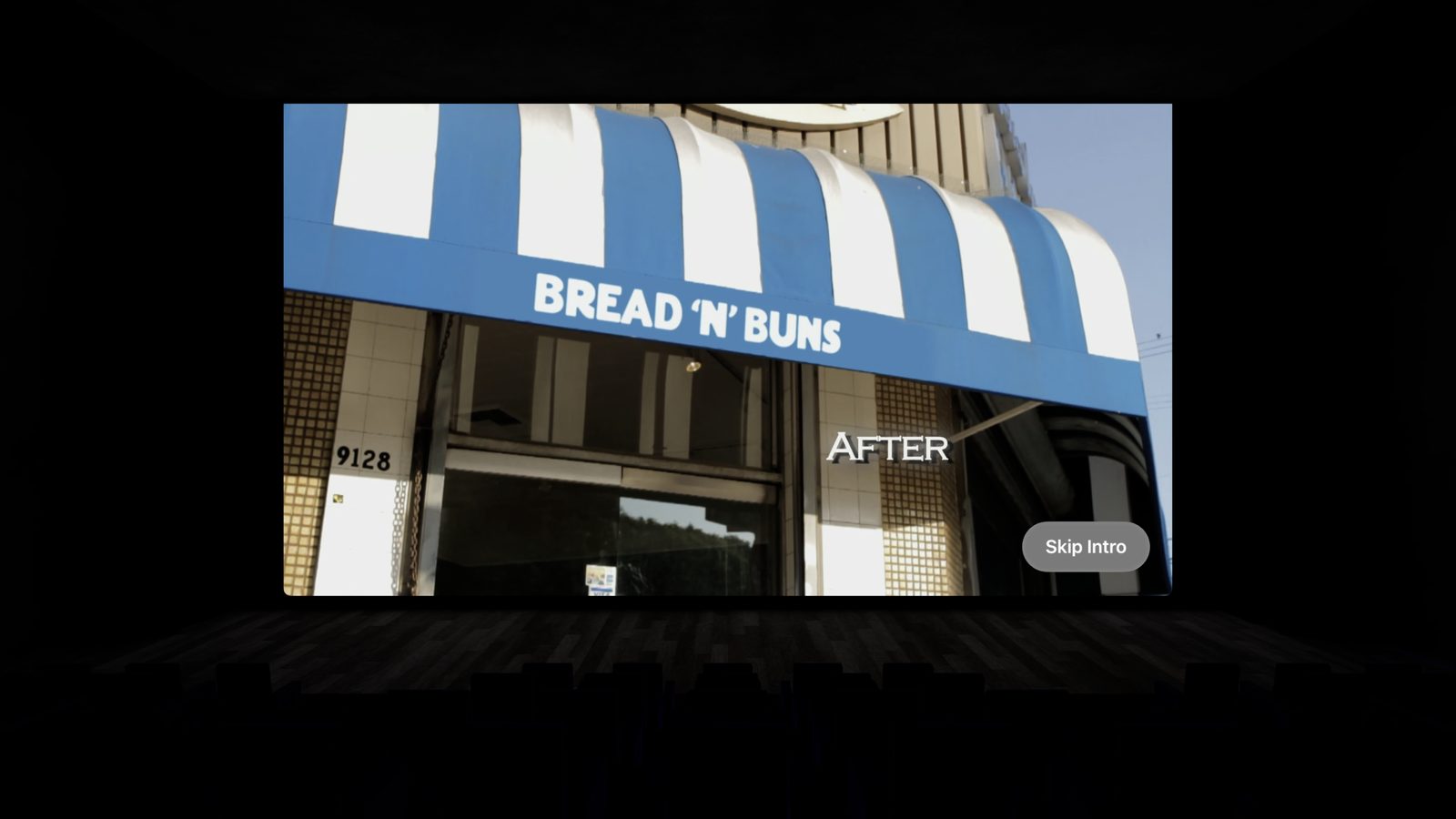
- Up Next keeps the picture playing while the next episode waits in the corner, and on Plex, Skip Intro is right where you’d expect it.
- The info card has a Continue Watching tab, so you can pick up something else without leaving your seat.
New ways to watch
- AI 3D (Vision Pro): watch regular 2D titles with real depth.
- VR180, VR360 and spatial video playback on Vision Pro.
- Transcribe: on-device live subtitles for videos that don’t have any.
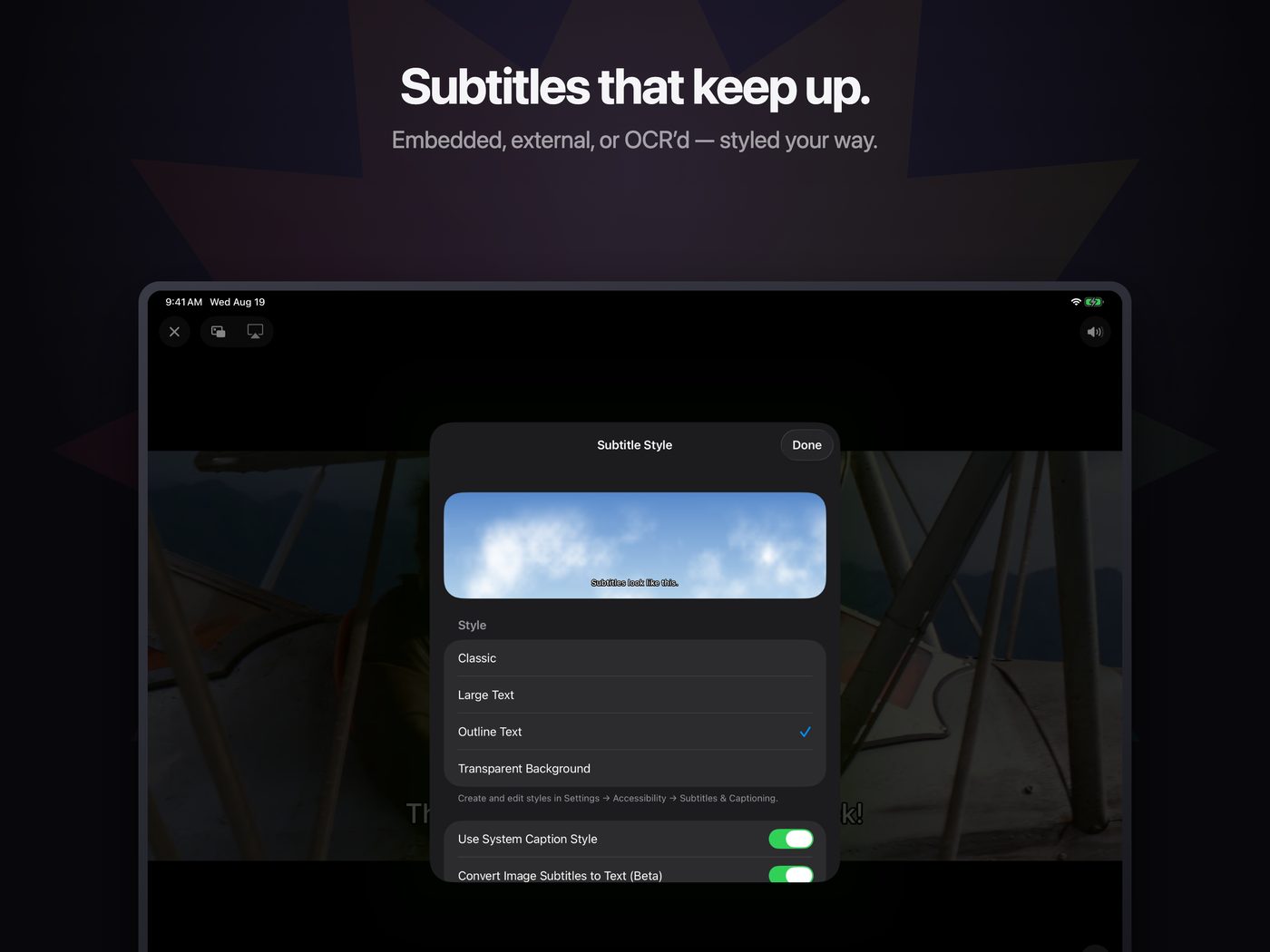
- Subtitles that follow your style. Image-based subtitles (the PGS tracks common in Blu-ray rips) get converted to text, so they use your font and size like any other subtitle.
The Analog TV
This one’s just for fun, and it’s Vision Pro only. Pick Analog TV and a vintage CRT set appears right in your room, next to your other apps. Your movie plays on the tube, with scanlines, phosphor tint and bloom you can tune to taste, and the sound comes from the set. It even lights up your room: the colors on screen spill onto the real floor in front of the TV, the way an old set glows in a dark room.
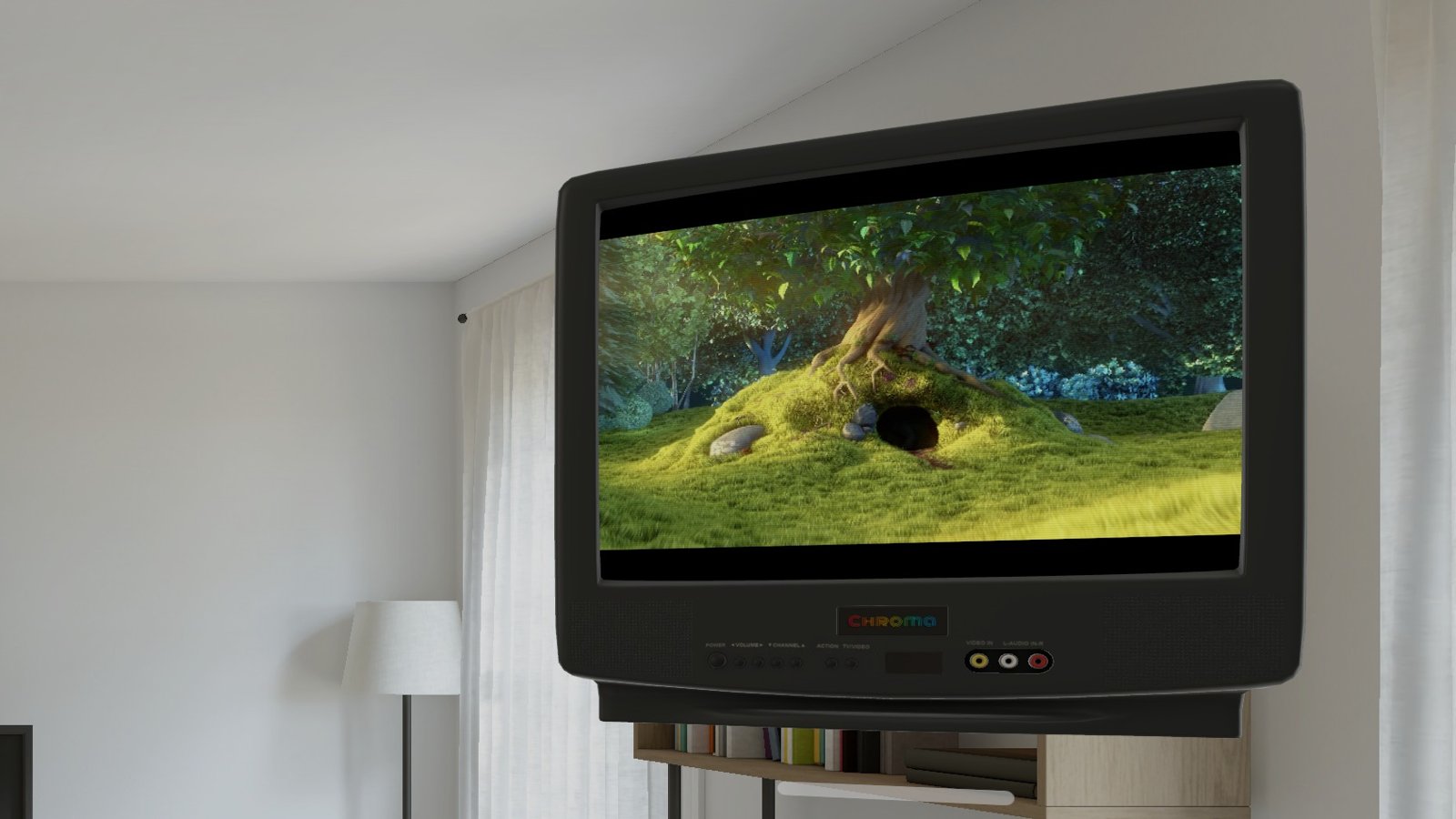
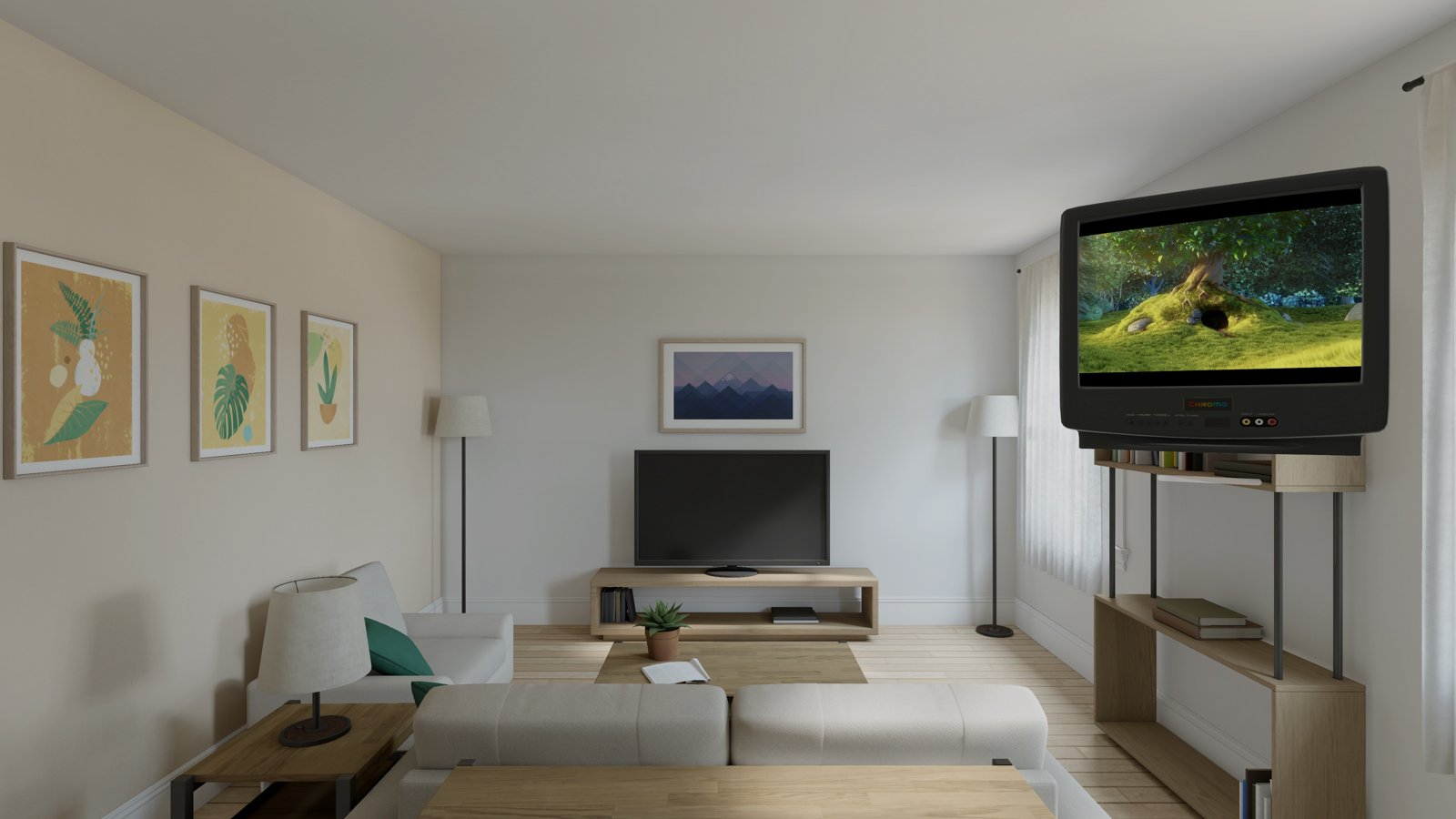
Playing on the set: Big Buck Bunny © Blender Foundation, CC BY 3.0.
Downloads
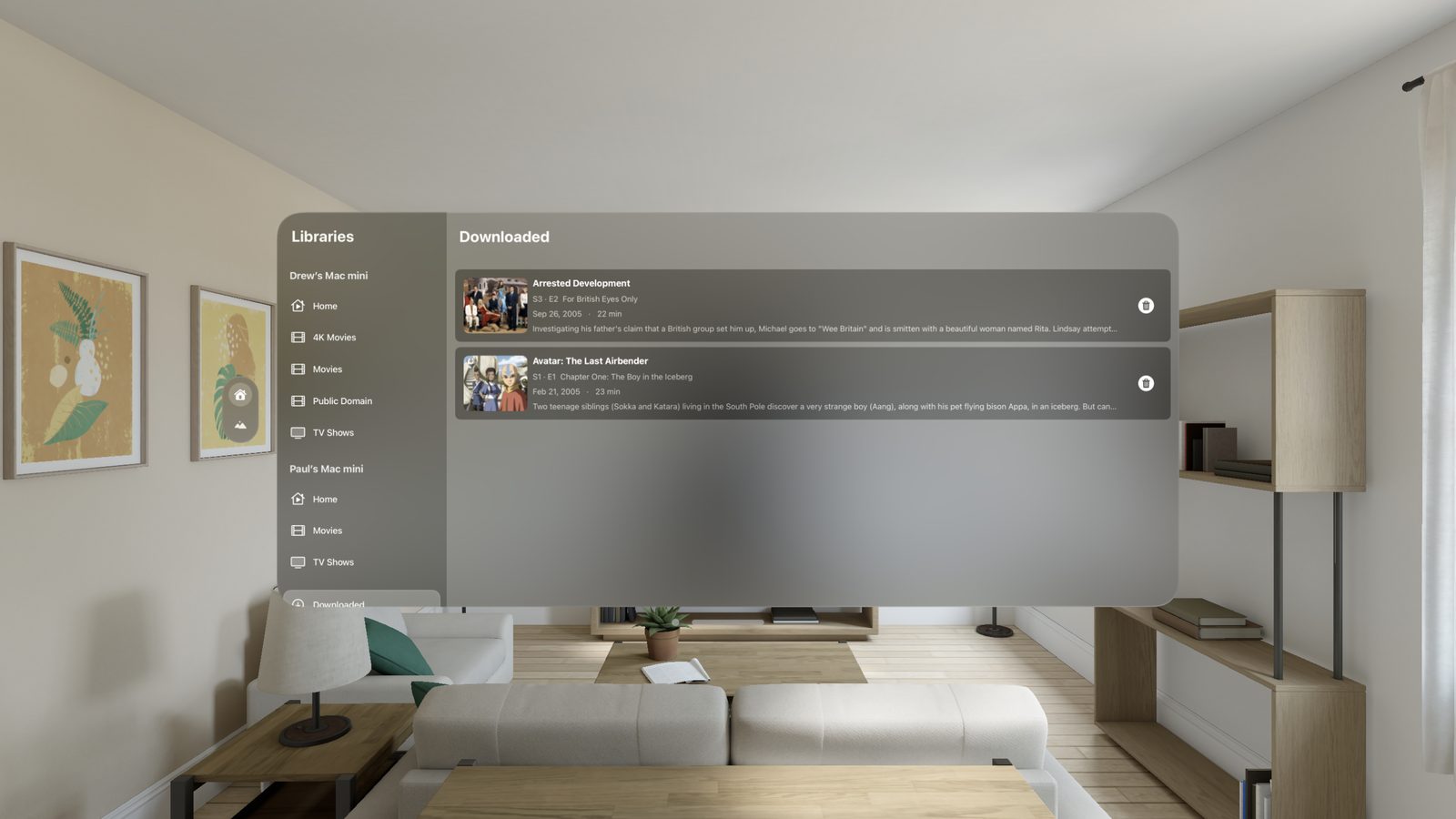
- Download a whole season in one go, or just the episodes you haven’t watched.
- A show’s episodes sit together in one row, with the poster, episode count and storage used.
- Downloads remember where you left off.
Siri, Shortcuts and widgets
- Ask Siri to “play Shrek in Chroma”, “continue watching in Chroma” or “play the next episode”. While something’s playing, “turn on subtitles” or “change the audio to English” work too.
- Your Continue Watching and Recently Added titles show up in Spotlight and Siri’s suggestions.
- The Movie Poster widget puts a shelf of posters on your Home Screen (or in your room, on Vision Pro), with your progress under each one. You choose, per widget, whether tapping a poster opens the title or starts playing it.
Plus a watchlist
Heart any title on Plex or Jellyfin and it lands on your Watchlist, which gets its own row on Home and a page of its own.
Chroma Pass
Everything above works in Chroma for free, with a limit on watch time. Chroma Pass removes that limit, unlocks the exclusive cinema environments, and syncs your watch progress with your server. It’s available Monthly, Yearly, or as a one-time Lifetime purchase, and it starts with a free trial.
Chroma is on the App Store for Apple Vision Pro, iPhone and iPad. If you try it, I’d love to hear what you think. There’s a lot more on the way.